A little widget. A clearer day.
Your day, at a glance.
Your day, at a glance.
Your screen, your way.
A calendar that feels right at home. Beautiful, personal widgets
that keep your plans in view, without opening an app.
For iPhone & iPad · No account needed · Just your day
11 WIDGETS · 8 WAYS TO PLAN
A view for every kind of day.
From today to the month ahead.
Find the view that feels like you.
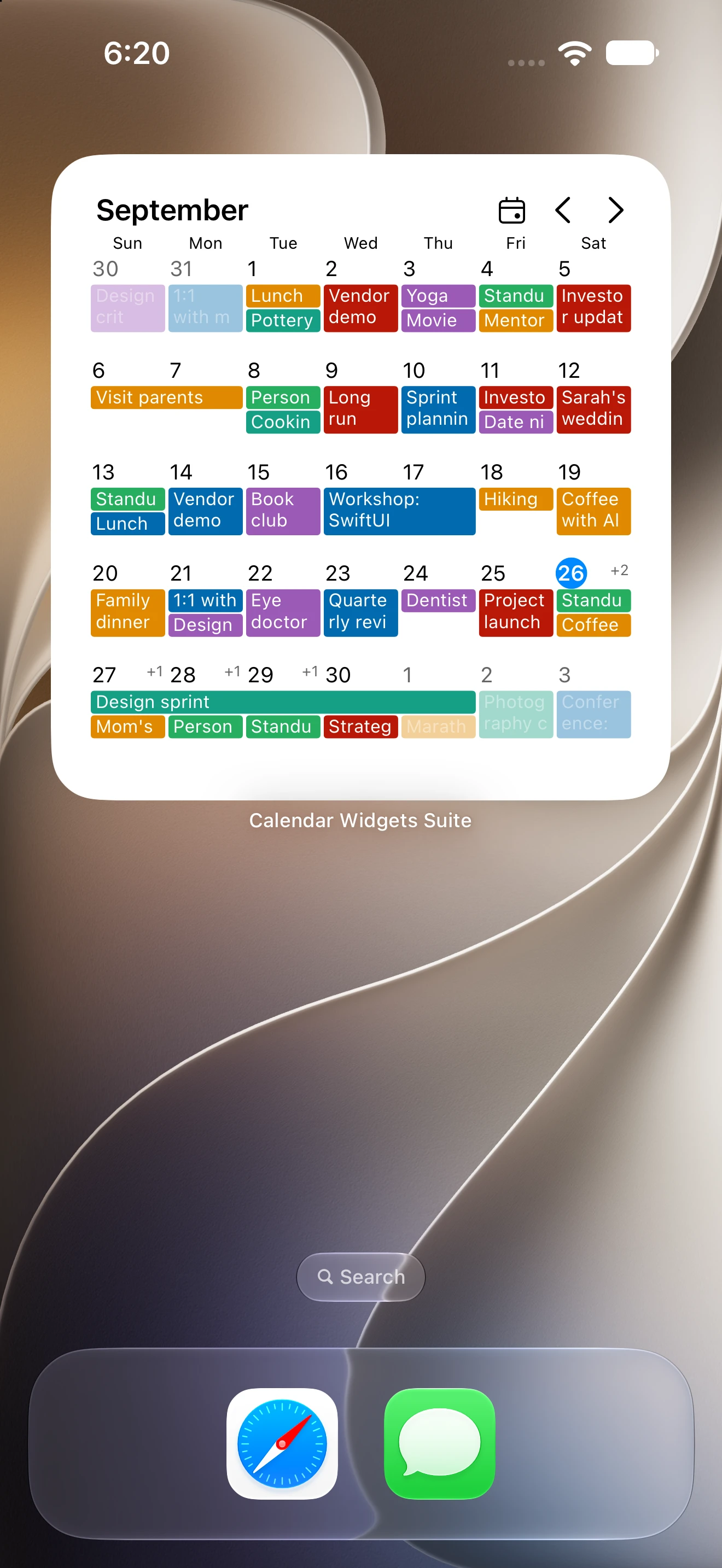
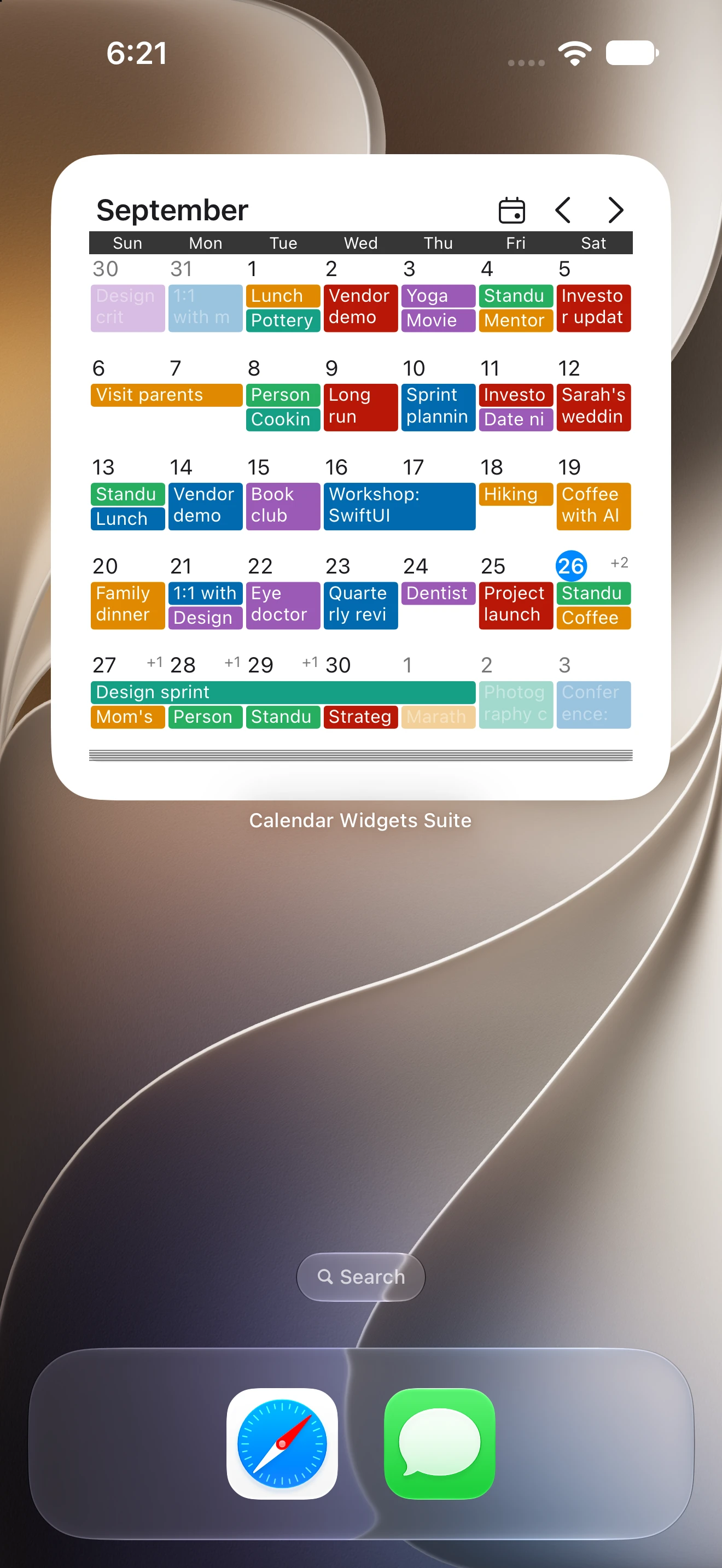
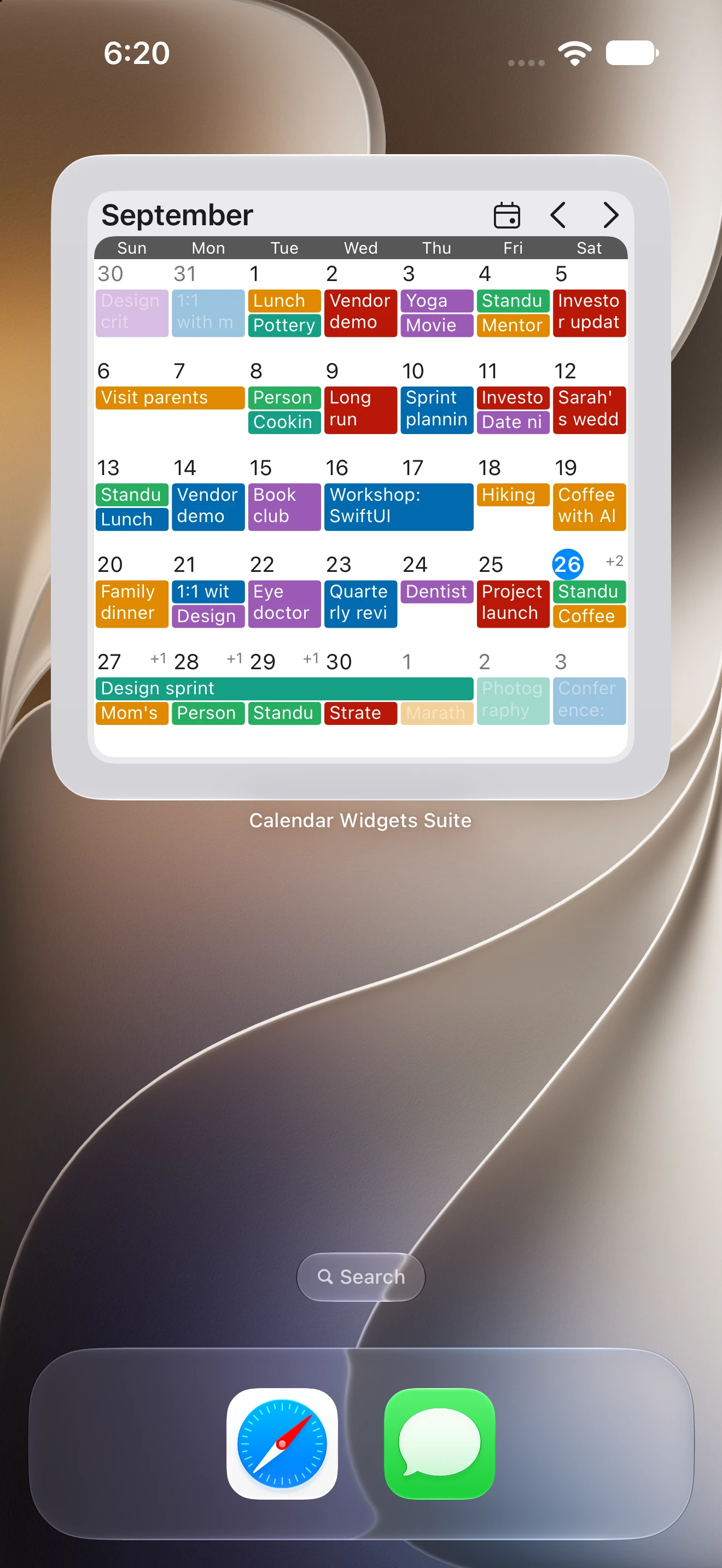
Month, four weekly views, Week Timeline, List, Today, Today + Mini Month, Week Agenda, and Week Grid.
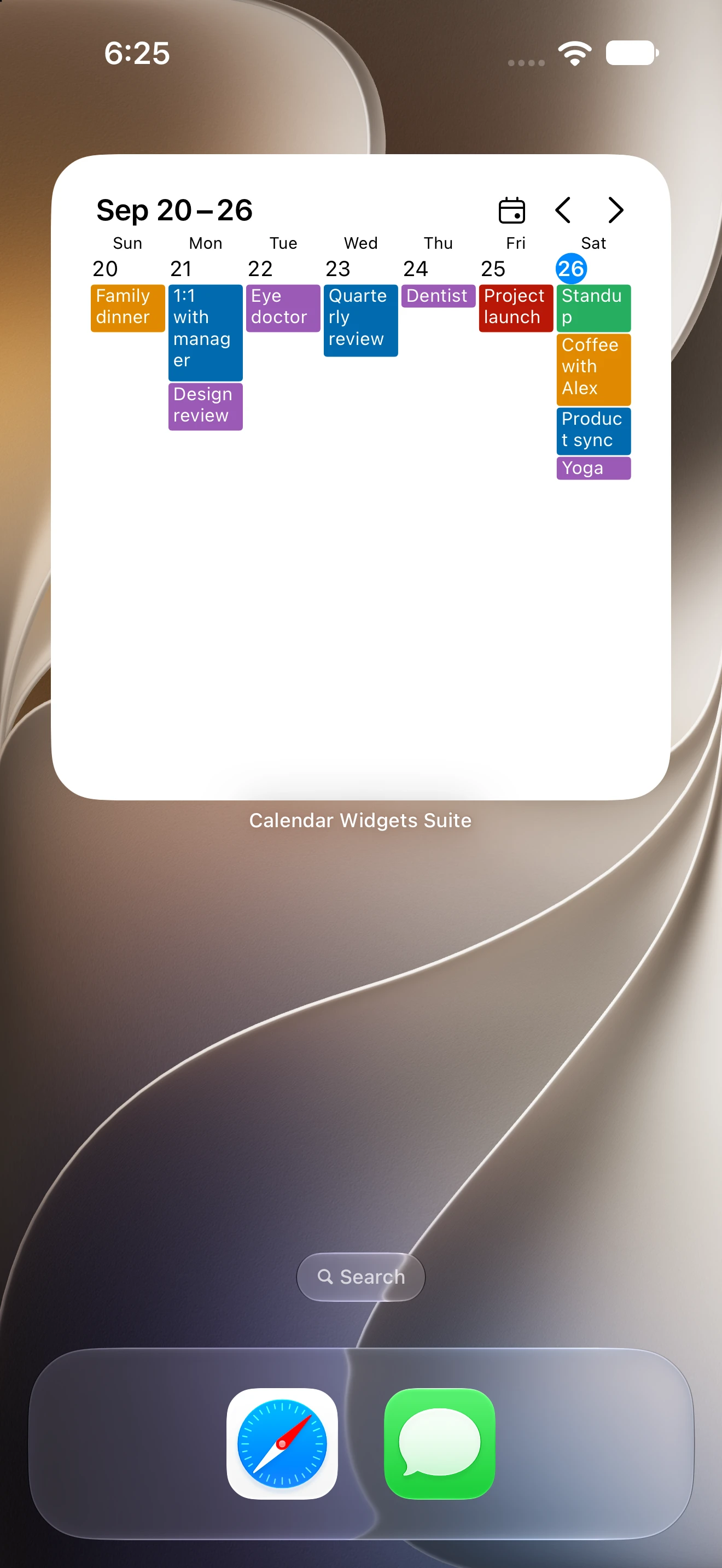
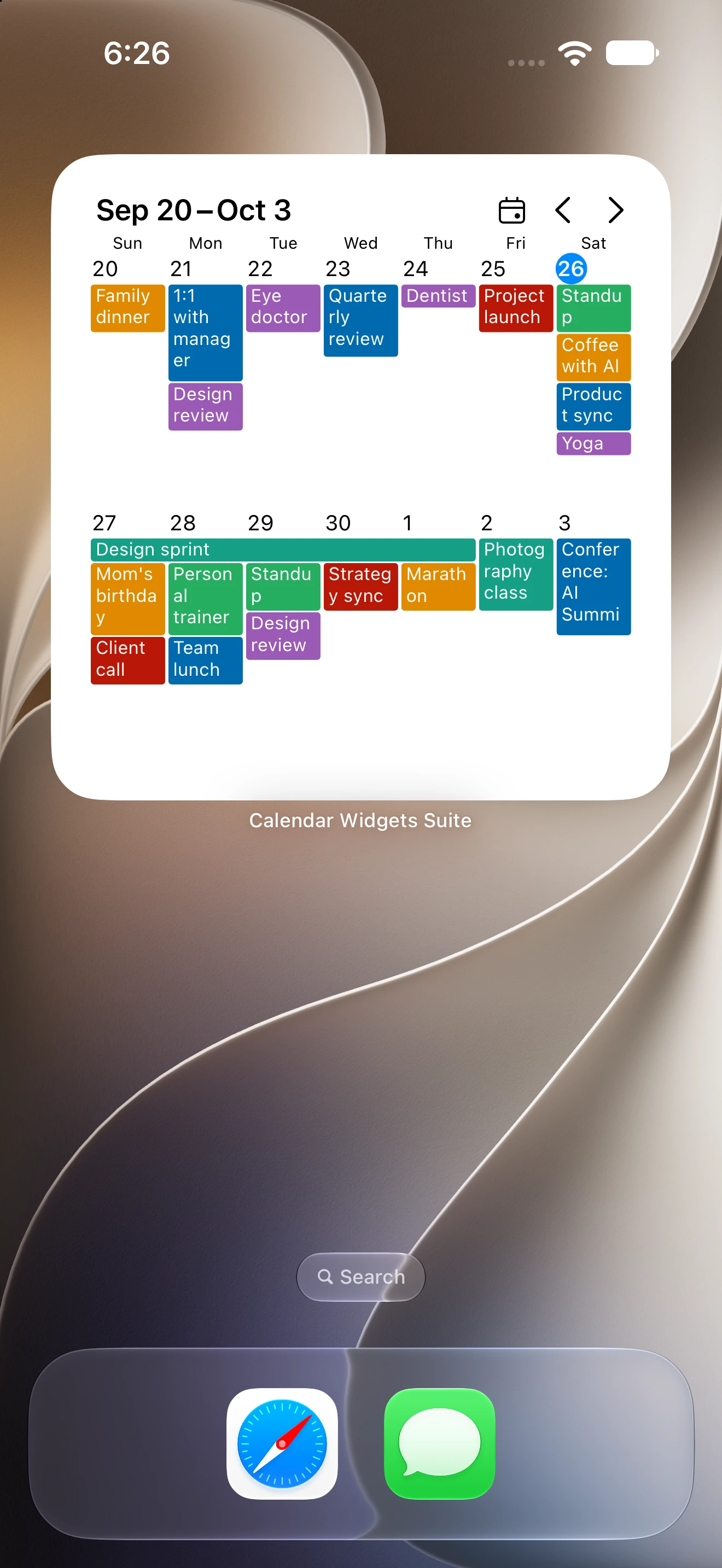
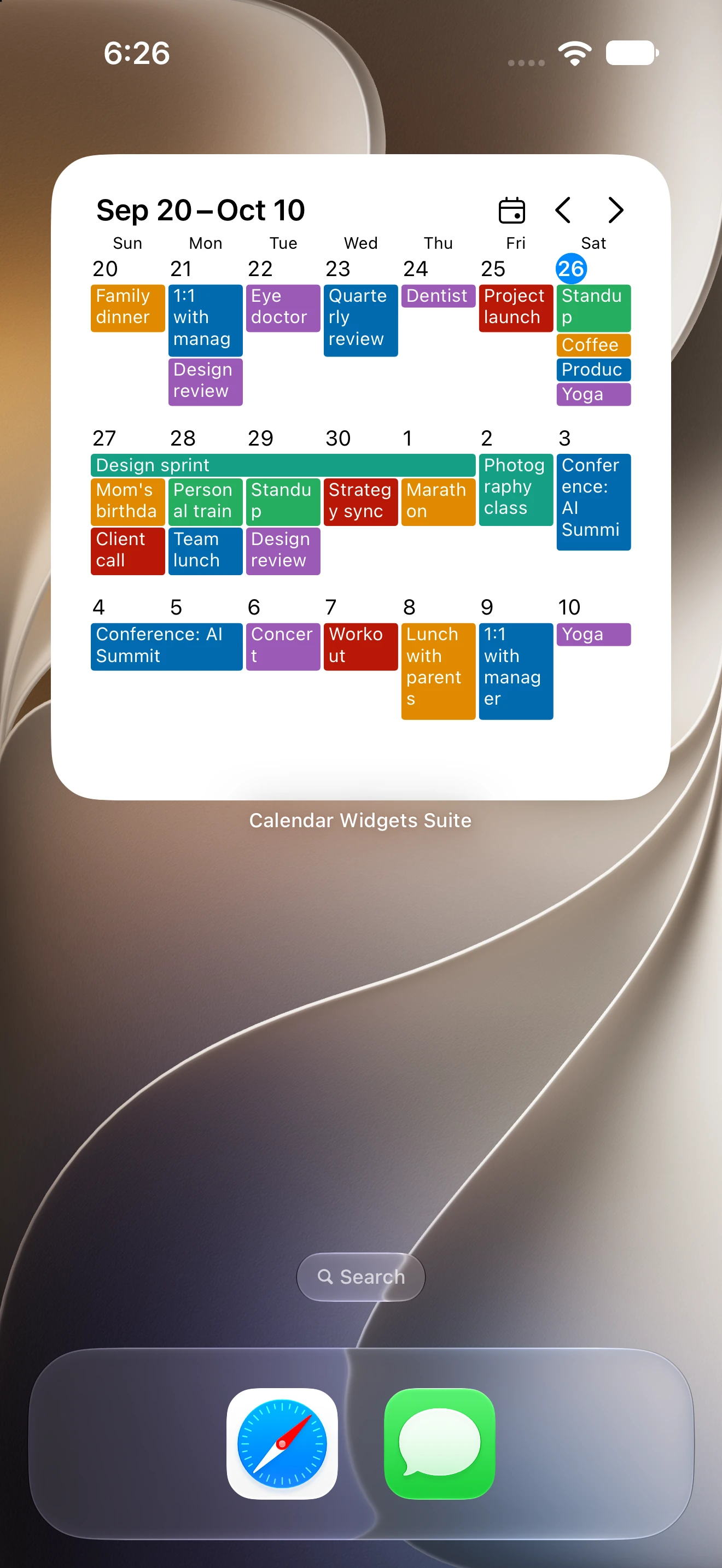
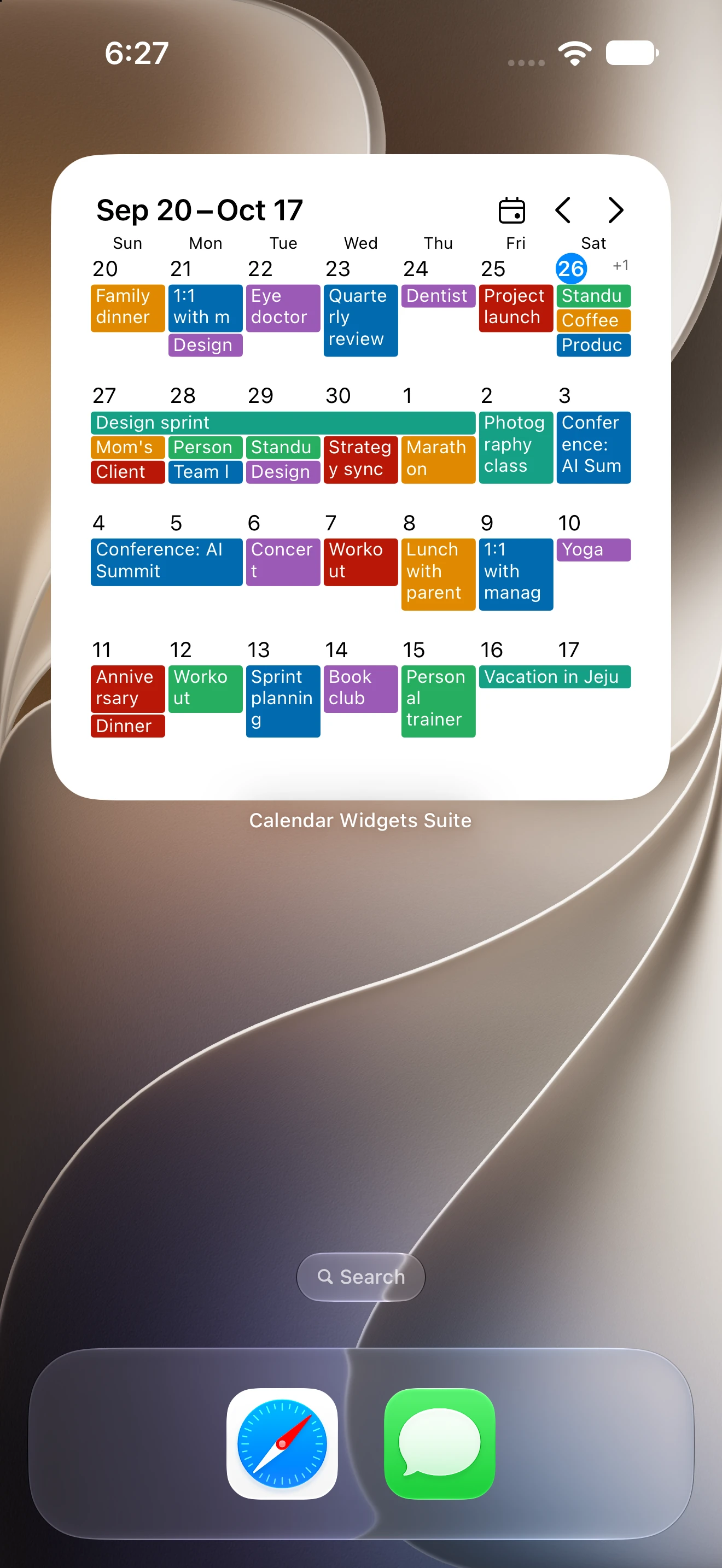
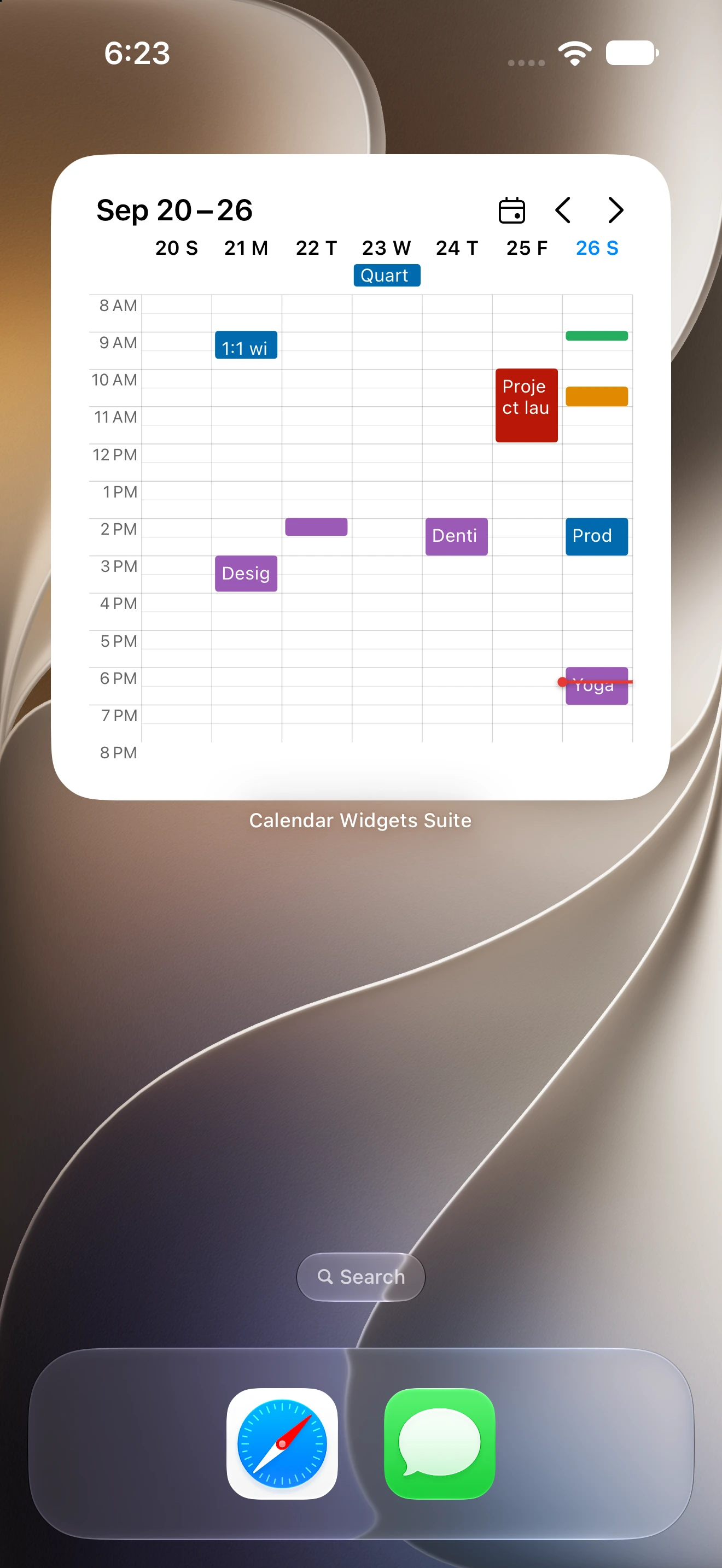
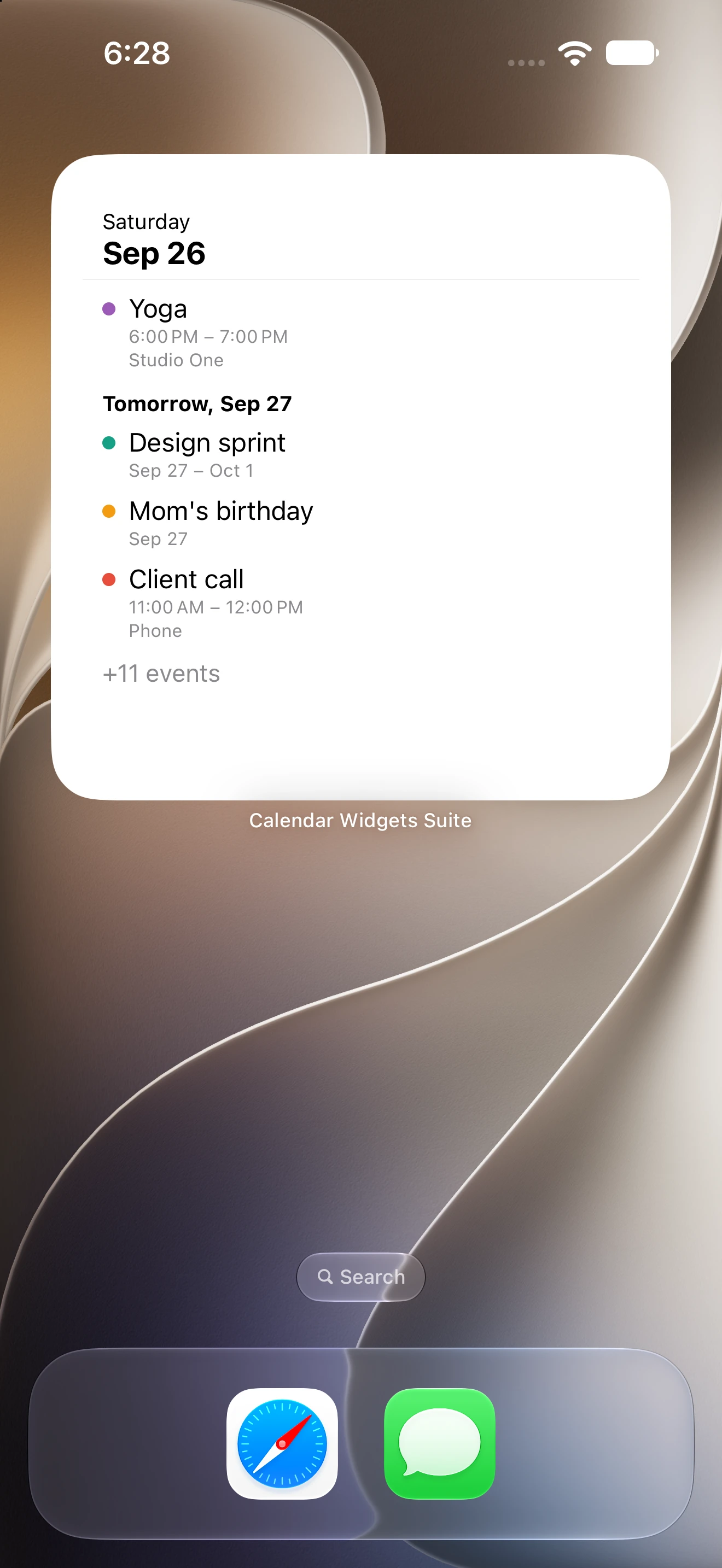
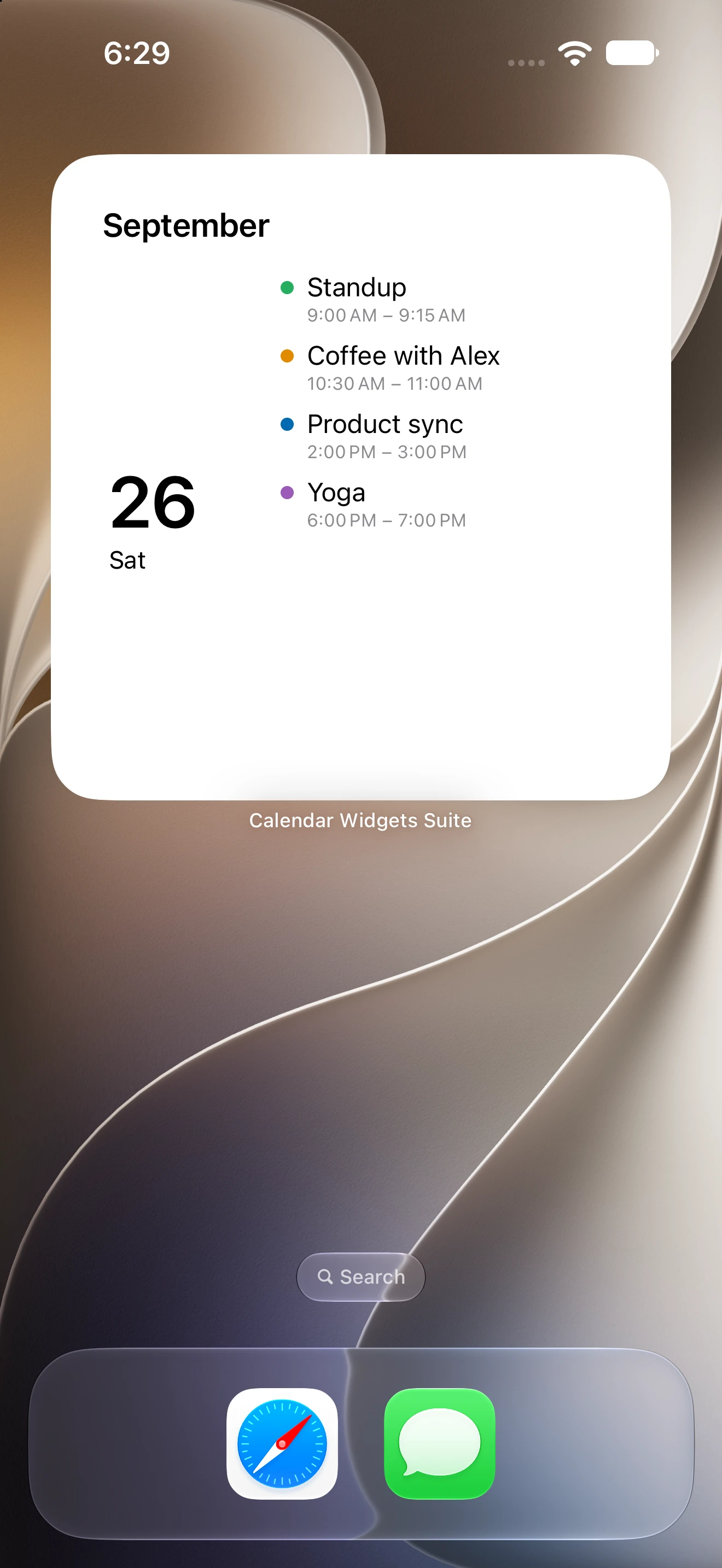
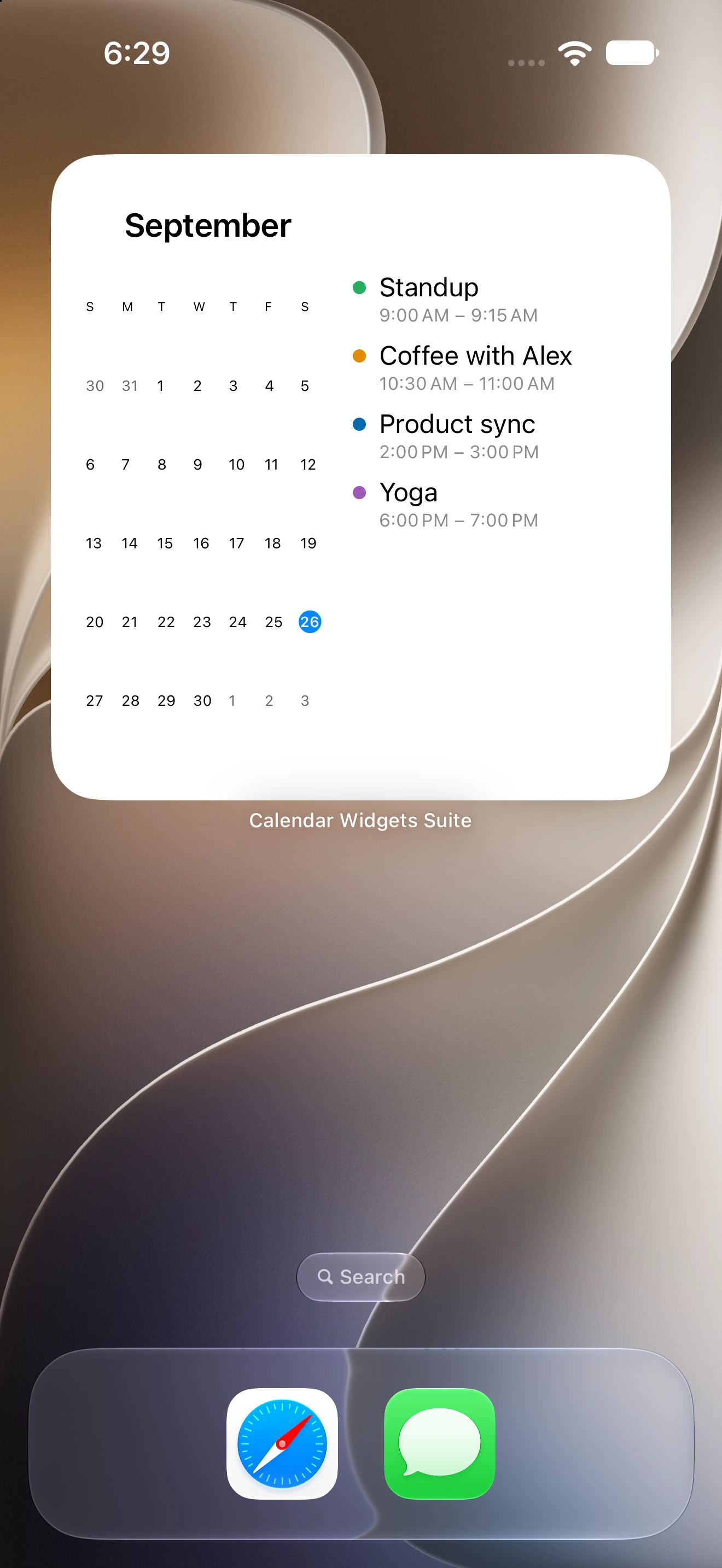
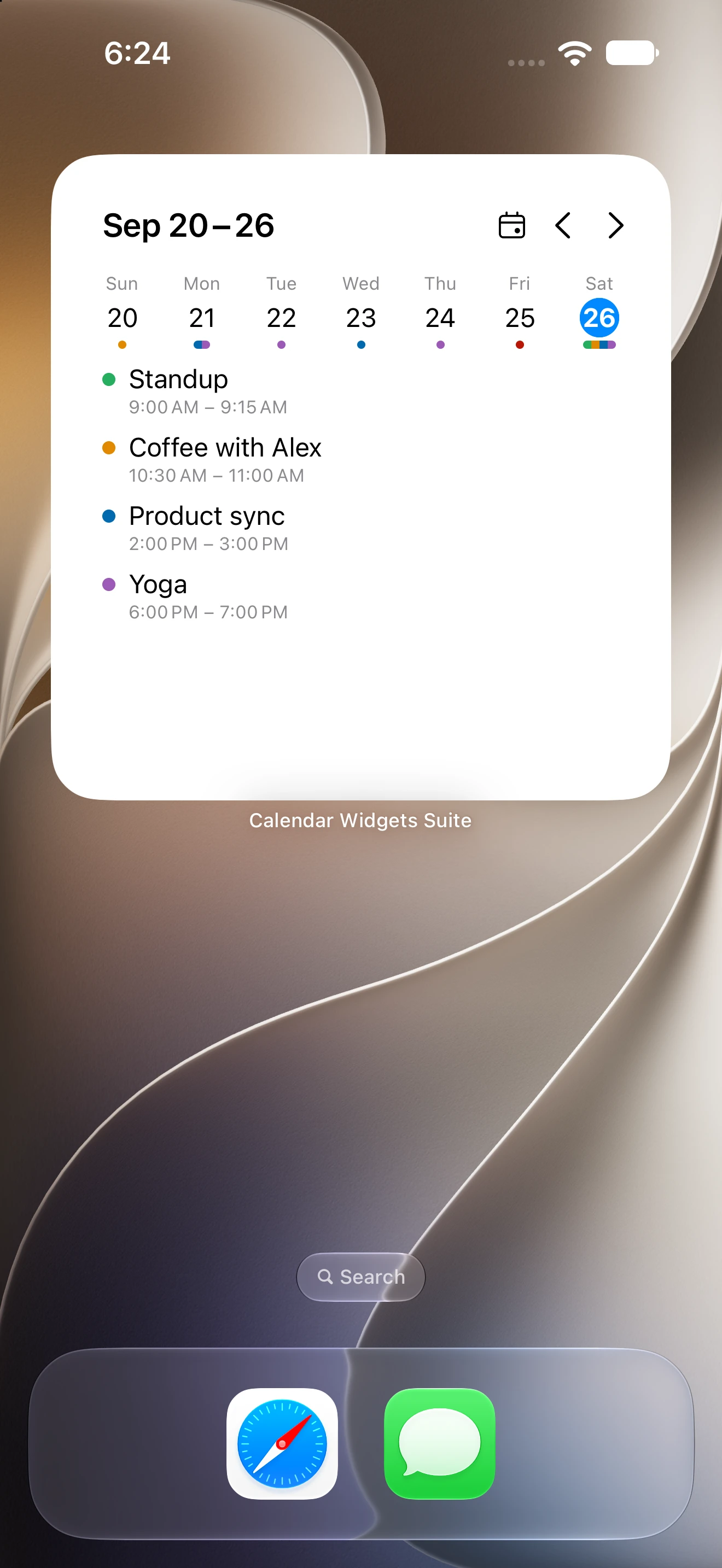
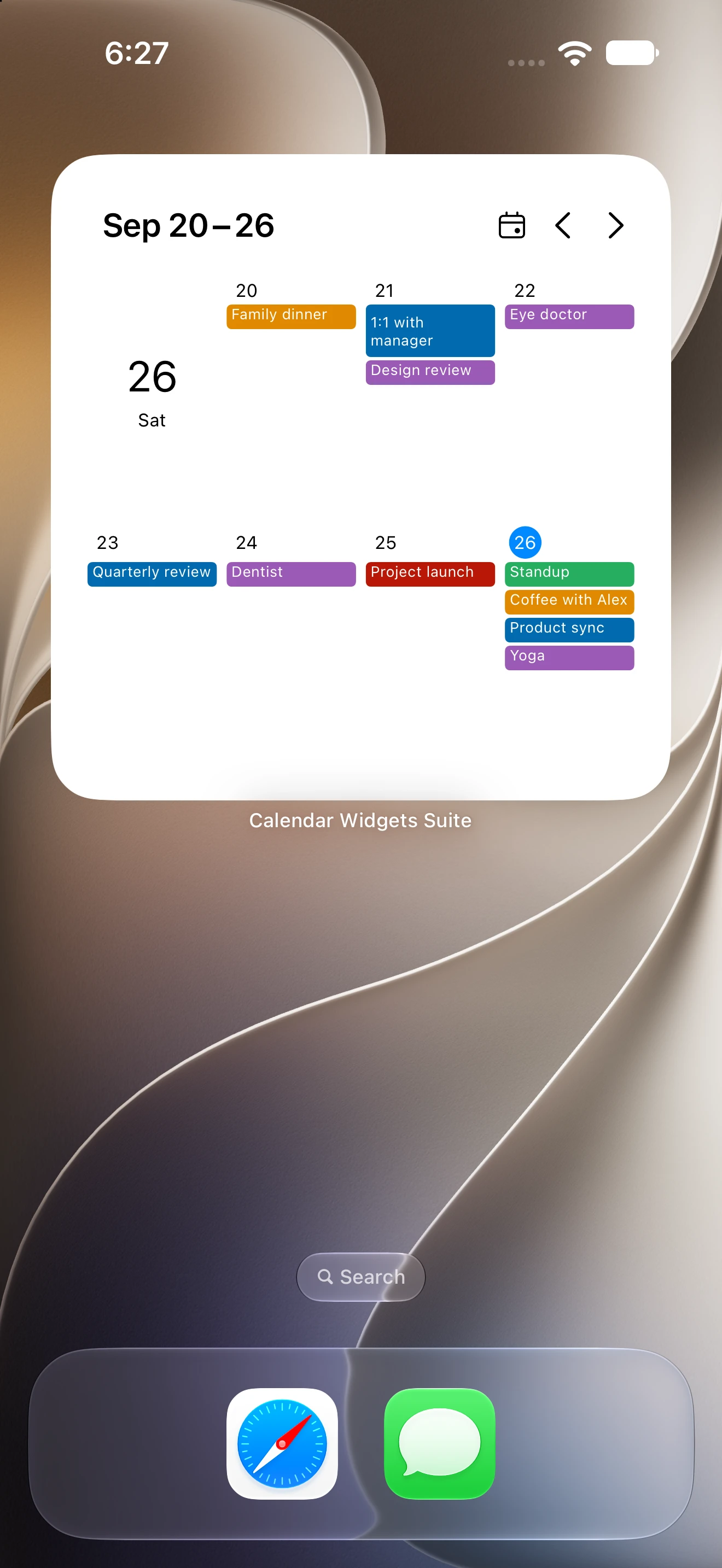
11 widgets. One less app to open.
Start with Month for free. Unlock the other 10 widgets, skins, and Reminders with one optional Premium purchase. No subscription.
11 widgets. 8 ways to plan.
Styled to feel like you
On your device. Only.
A PERSONAL TOUCH
A little lavender.
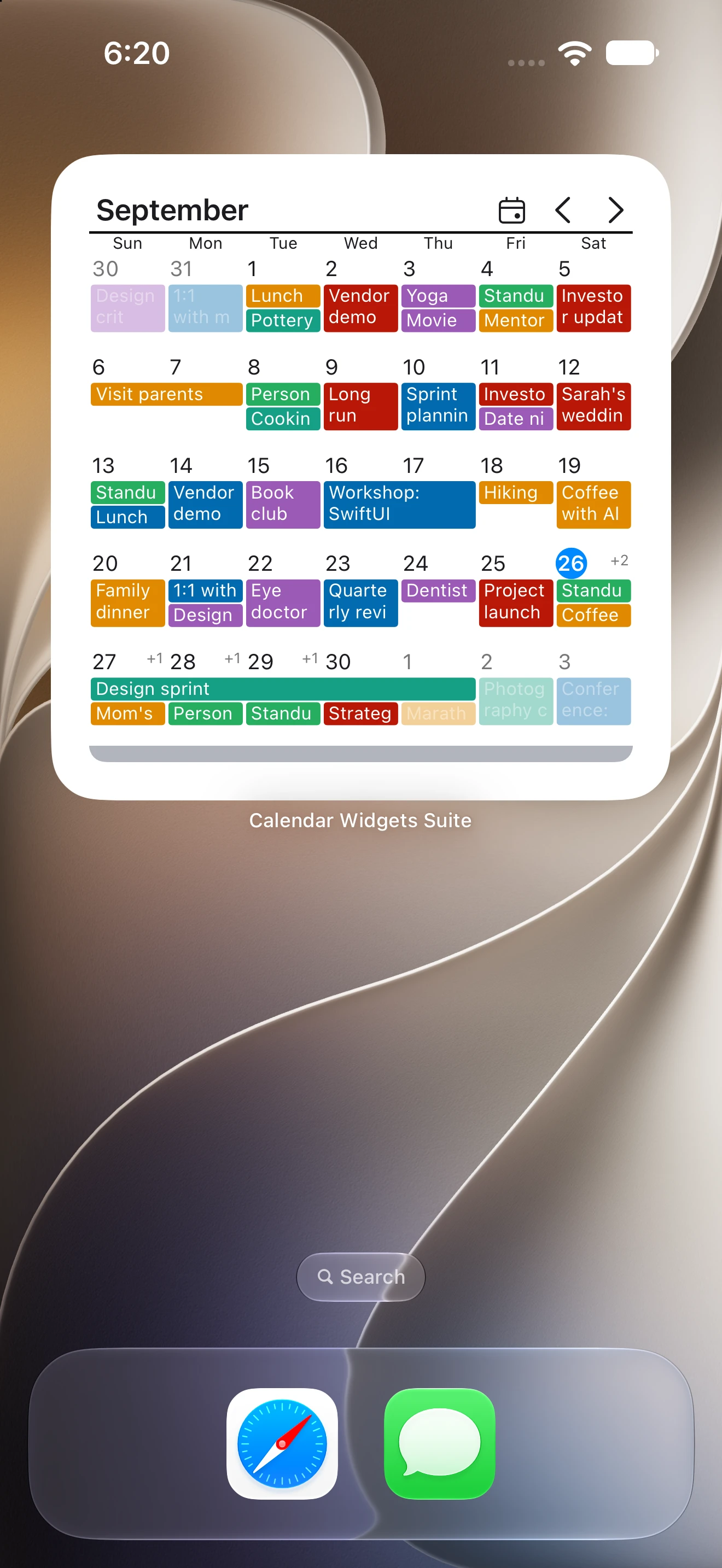
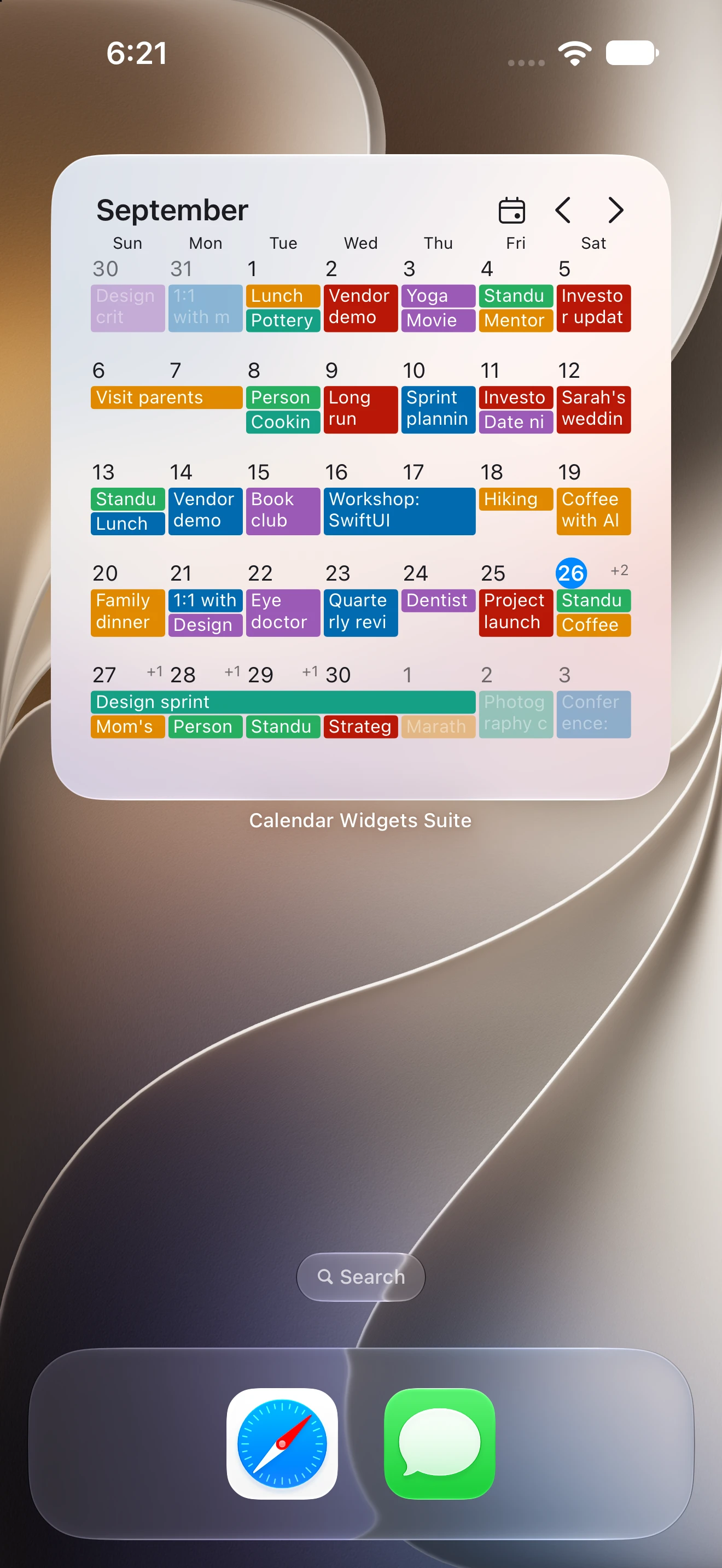
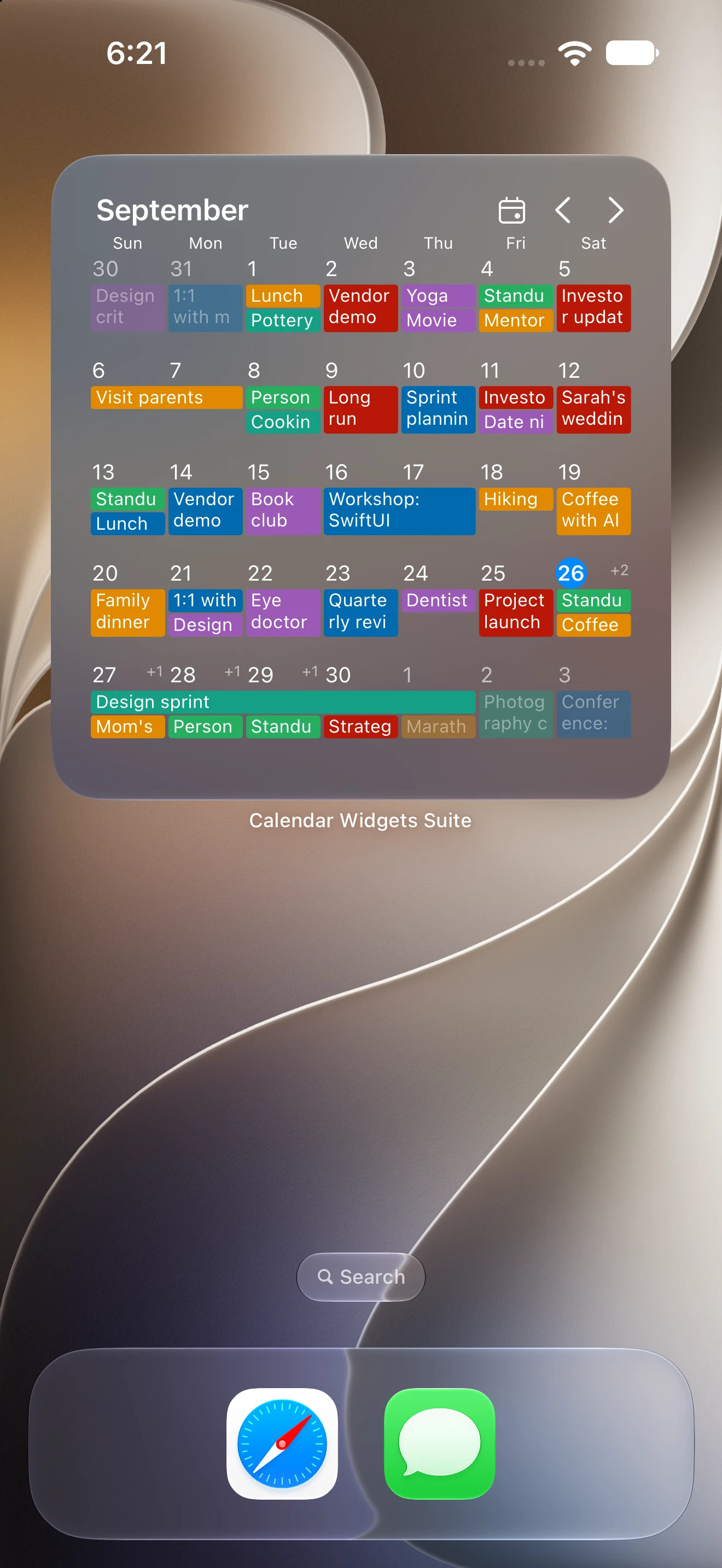
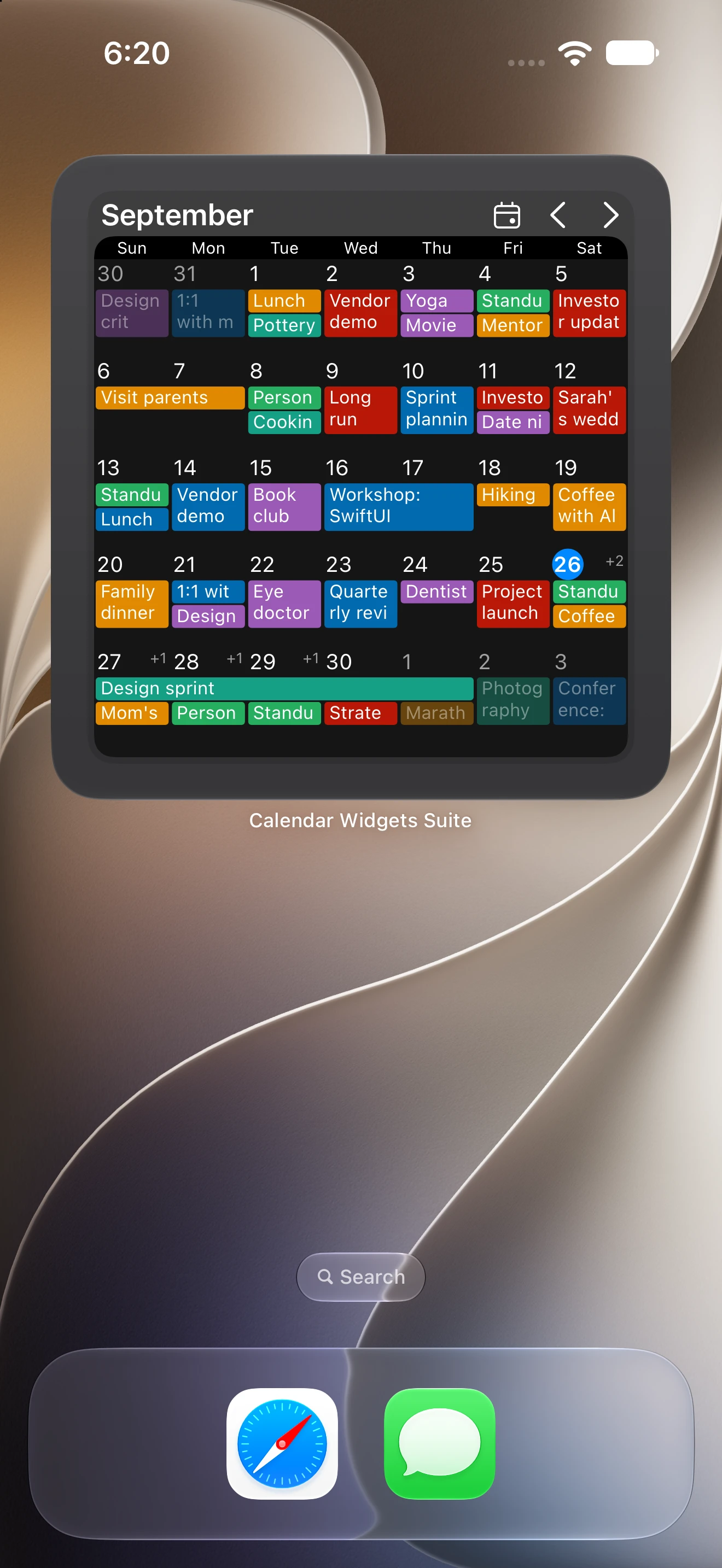
Looks like you. Plans like you.
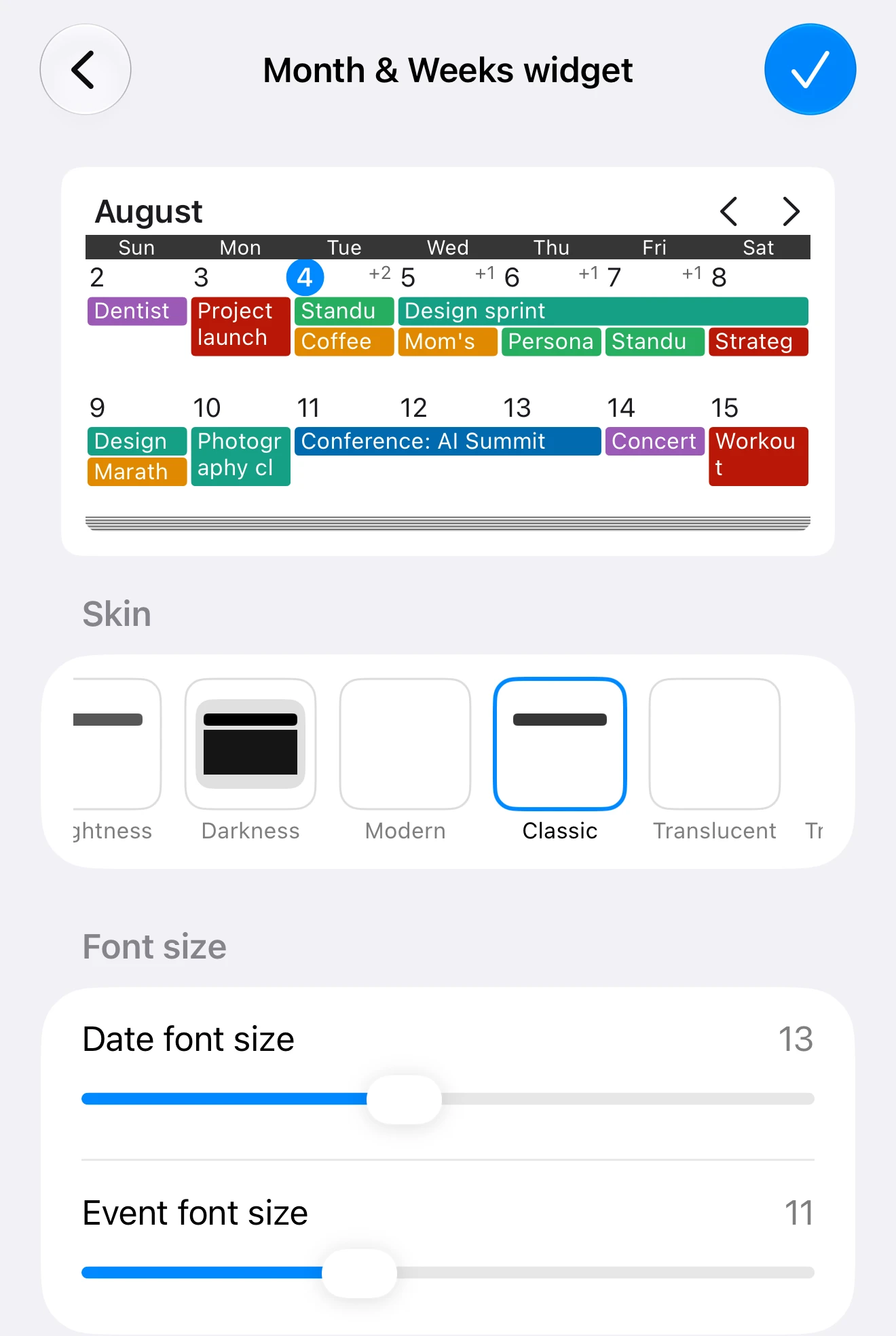
Fine-tune your fonts and layout, then explore six Premium skins — or keep things simple with no skin at all.
YOUR SCREEN, YOUR MOODMake a little
Make a little
space for you.
Quiet neutrals or a pop of color?
Try a backdrop for your widget.
Backdrop preview · Customize skins, colors, and fonts in the app.
FIND YOUR FINISH
Skins included with PremiumSix skins. Or beautifully bare.
Same plans. A different personality.
PREMIUM SKIN01 / 07
Classic
Familiar lines. A timeless feel.
PREMIUM SKIN02 / 07
Modern
Clean edges. A lighter touch.
PREMIUM SKIN03 / 07
Translucent
A soft layer of color.
PREMIUM SKIN04 / 07
Translucent dark
A little depth after dark.
PREMIUM SKIN05 / 07
Darkness
Settle into something darker.
PREMIUM SKIN06 / 07
Brightness
Keep your day light.
NO SKIN07 / 07
No skin
Just your calendar. Simply.
- Separate colors for event titles, dates, times, and locations
- Date and event font sizes, tuned independently
- Word wrap: never, always, auto, or capped at two, three, or four lines
- First day of week — including a rolling “Today”
- 12- or 24-hour time
- Dim past events so the day ahead stands out
- Highlight Saturdays, Sundays, and holidays
- Choose exactly which calendars appear
- Sort events by start time, end time, title, or duration
- Different settings for each widget type
PRIVATE BY DESIGN
Your plans are personal.
Your plans are personal.
Let’s keep them that way.
Calendar Widgets Suite reads your events — and your reminders, if you switch those on — on the device and draws them. Nothing about your calendar or your reminders ever leaves your phone. There is no account to create, no server to sync with, and no analytics or tracking of any kind. Your settings live in a private container shared only between the app and its own widgets.
Speaks your language
Calendar Widgets Suite is fully translated into 27 languages.
Arabic
Chinese (Simplified)
Chinese (Traditional)
Czech
Danish
Dutch
English
Finnish
French
German
Hebrew
Hindi
Indonesian
Italian
Japanese
Korean
Norwegian Bokmål
Polish
Portuguese
Russian
Slovak
Spanish
Swedish
Thai
Turkish
Ukrainian
Vietnamese
GOOD TO KNOW
A few little answers.
How do I add a widget?
Touch and hold an empty spot on your Home Screen until the icons jiggle, tap the plus button in the corner, search for Calendar Widgets Suite, then choose a widget and a size. You can restyle everything afterwards in the app.
Can I choose which calendars show up?
Yes. Open Calendar Widgets Suite, tap Select Calendars, and pick the ones you want. If you select none, every calendar is shown.
How often do widgets refresh?
iOS decides when Home Screen widgets redraw and budgets those refreshes, so a change can take a few minutes — occasionally longer — to appear. Saving a change in Calendar Widgets Suite asks every widget to redraw straight away.
What do I need to run it?
An iPhone running iOS 18.2 or later, or an iPad running iPadOS 18.2 or later. The tall extra-large iPhone widgets require iOS 27.
Something is wrong. Where do I get help?
Email admin@joshuanco.com and we will take a look. More troubleshooting lives on the support page.
A clearer day starts
on your Home Screen.
Your plans, right where you need them.